By ZEISMO, the plugin developer · September 24, 2026 · WordPress.org edition 1.0.3
Watch the workflow
Authentic footage from a sample WordPress site, edited for length. Silent, with on-screen instructions. Local features need no ZEISMO account; this exercise uses no AI assistance. The sample page starts with blank custom SEO fields. The classic editor is shown; your surrounding controls may differ.
1. Install and activate
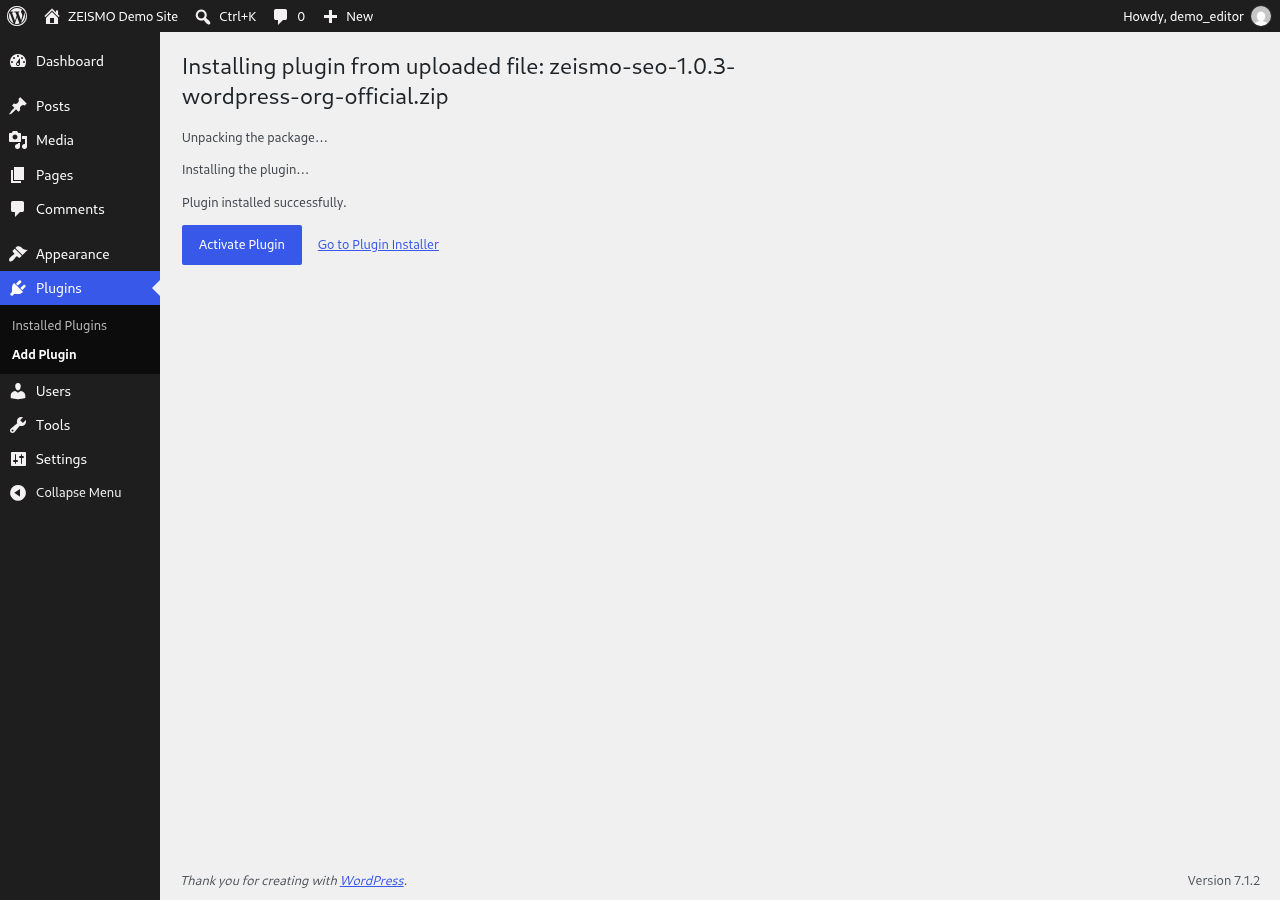
In WordPress, open Plugins → Add New Plugin, search for ZEISMO SEO by zeismodev, choose Install Now, then Activate.
Alternatively, download the ZIP from https://wordpress.org/plugins/zeismo-seo/ and choose Plugins → Add New Plugin → Upload Plugin → Choose File → Install Now → Activate Plugin. The recording demonstrates this ZIP route with the verified released package.
Before changing an existing site's SEO setup, keep a backup and review any other SEO plugin already responsible for titles, sitemaps and schema. Avoid duplicate output from overlapping plugins.
2. Review setup
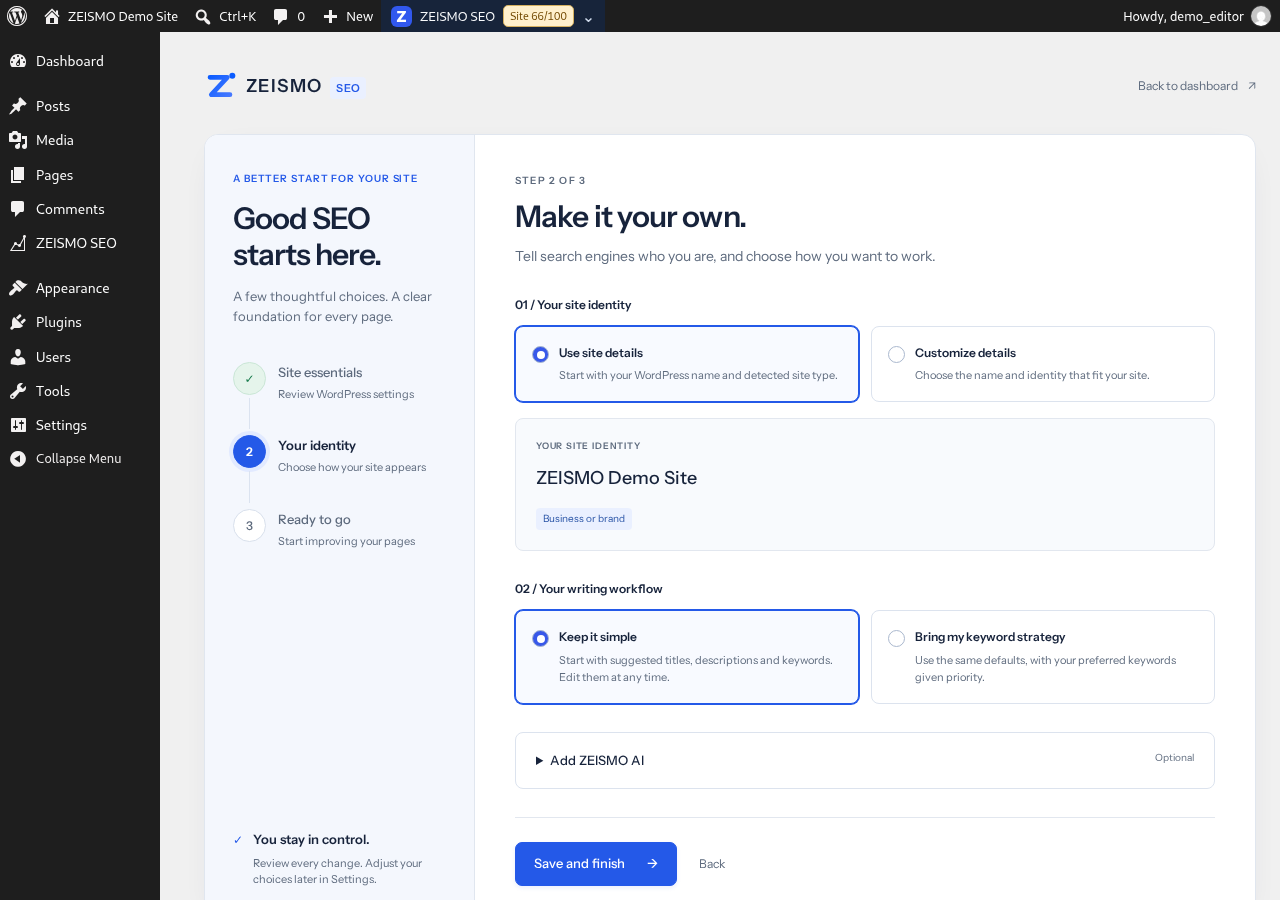
Review the setup choices before saving. On a private or staging site, keep search indexing discouraged. Do not change an established permalink structure merely to follow this demo. Continue or skip the first step as appropriate, review the site identity and choose Save and finish.
The optional Add ZEISMO AI section is not required for this local workflow. You can connect an account later if you want hosted AI assistance.
3. Run the local audit
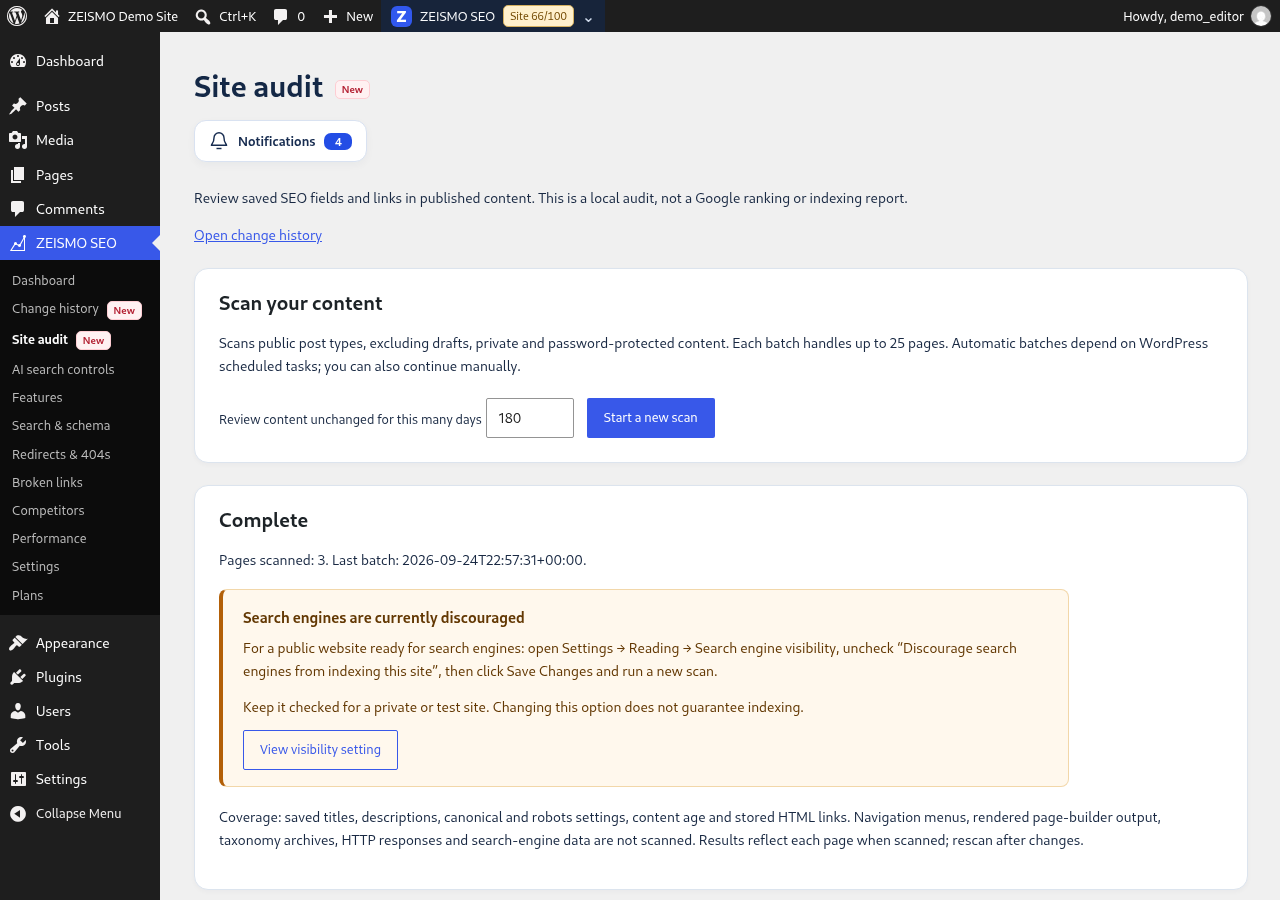
Open ZEISMO SEO → Site audit and choose Start a new scan. Wait for completion. If automatic processing does not continue, choose Continue next batch until the status becomes Complete.
The scan processes published content in batches of up to 25. It reviews saved SEO fields and stored HTML links. It does not report Google rankings or indexing, and does not inspect rendered page-builder output or navigation menus. The WordPress.org edition's local audit is unrestricted.
4. Choose one useful improvement
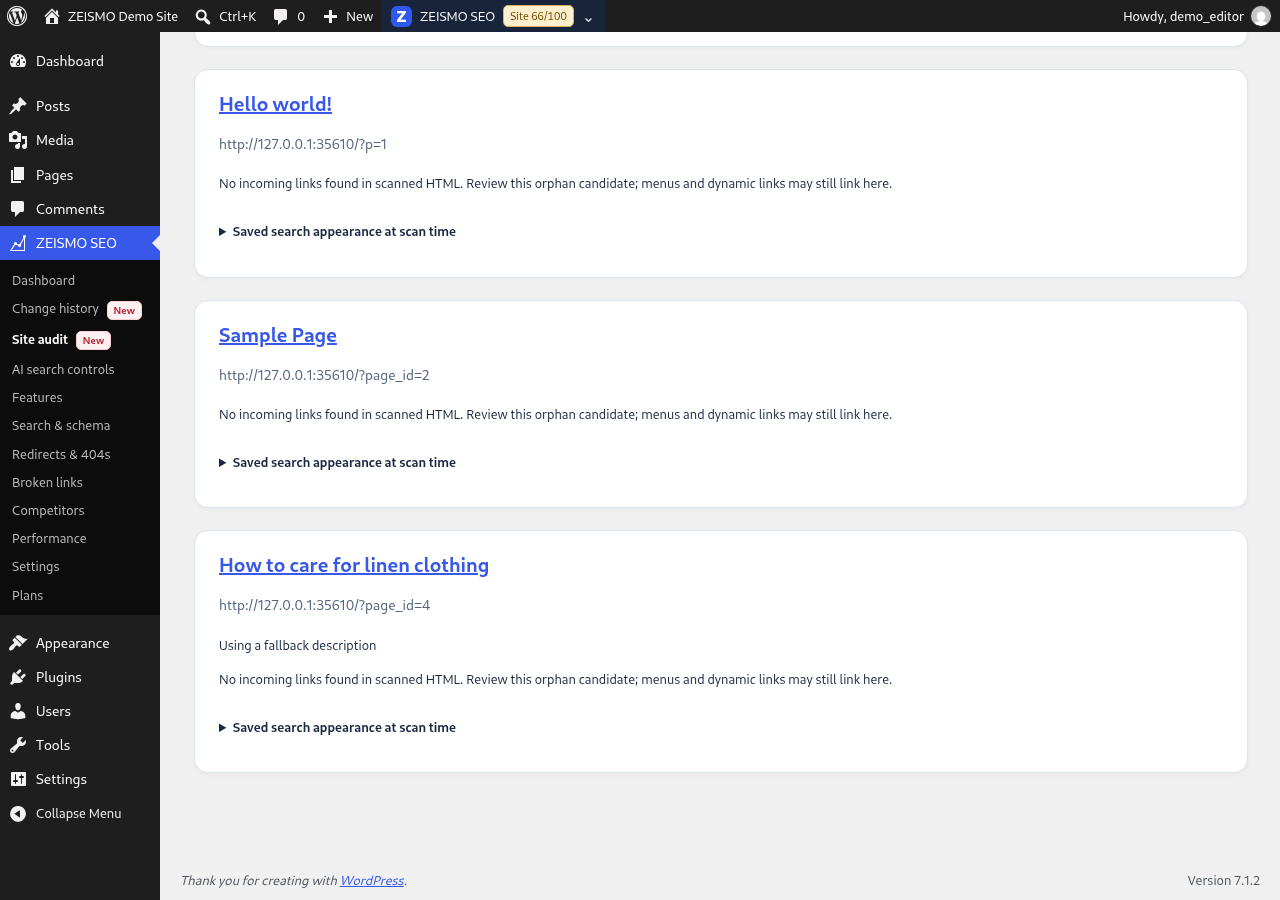
Read the findings for an important page. In this example, “How to care for linen clothing” uses a fallback description because its custom description is blank.
A fallback is not automatically a defect. Review whether it accurately summarizes the page. Here, we choose to write a more deliberate summary. An orphan candidate also needs judgment: the scan may not see links supplied by menus or dynamic content.
5. Edit the title and description
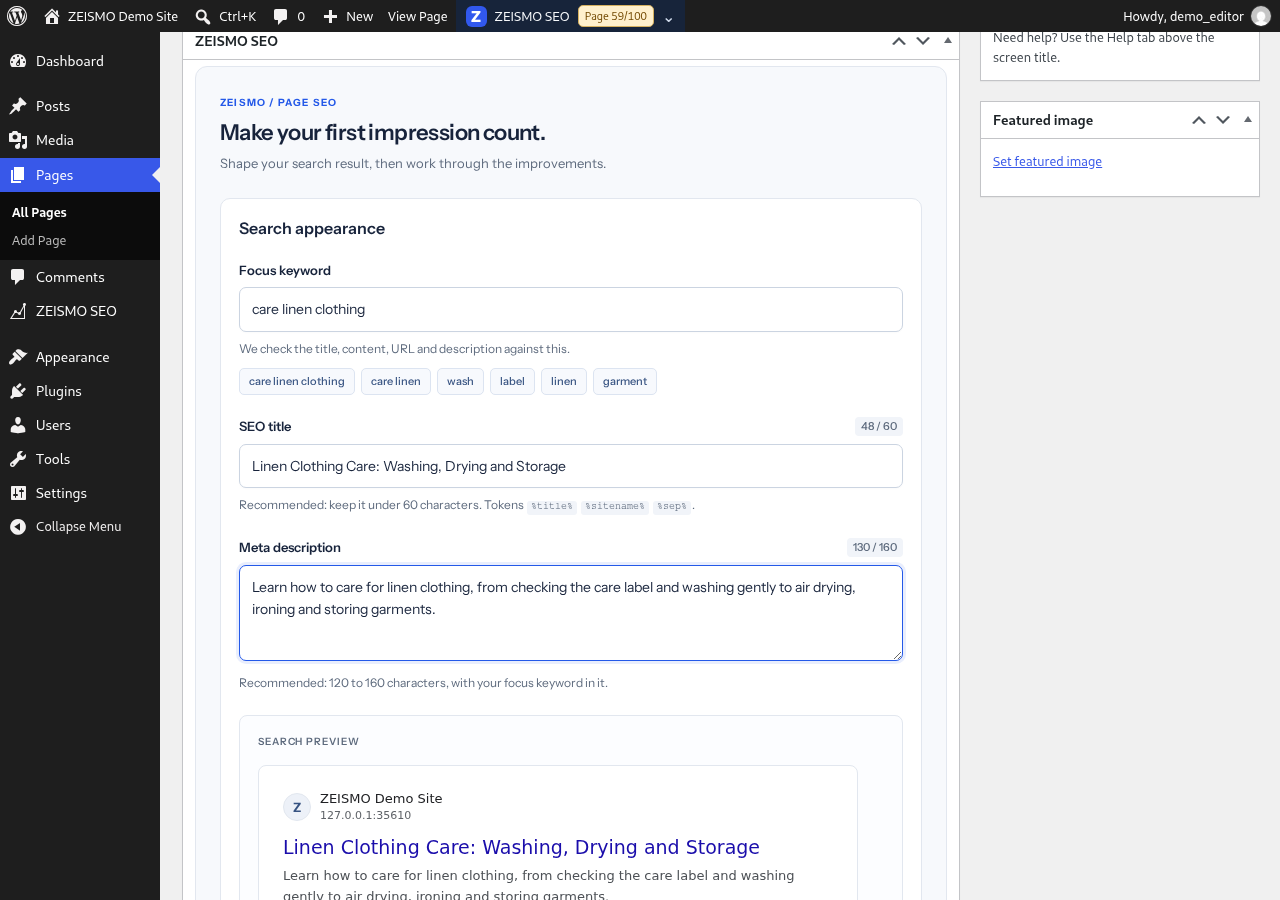
Open the page's editor and find the ZEISMO SEO → Search appearance fields. Read the page before drafting its summary.
Example SEO title: Linen Clothing Care: Washing, Drying and Storage
Example meta description: Learn how to care for linen clothing, from checking the care label and washing gently to air drying, ironing and storing garments.
These examples describe the sample article. Write your own accurate summary rather than copying text that does not fit your page. Review the search preview; search engines can rewrite titles and snippets.
6. Save and verify
Choose WordPress's Update button for an existing published page. Reopen the page and confirm that both custom fields contain the values you intended. Typing a draft or viewing a preview alone does not save it.
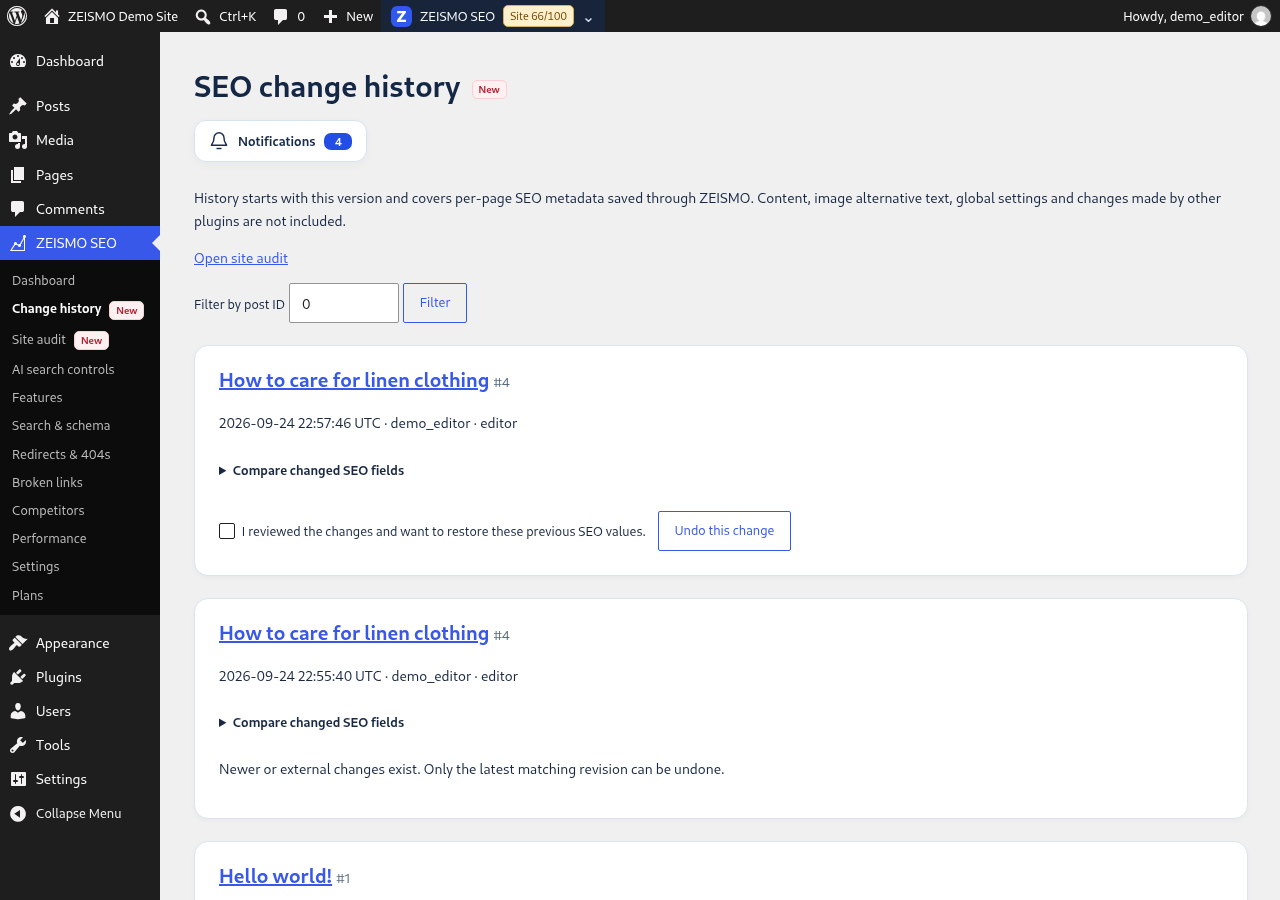
Open ZEISMO SEO → SEO change history to inspect the recorded metadata edit. History covers supported per-page SEO metadata saved through ZEISMO, not the entire page content or all website settings. Only an eligible latest matching change can be undone; compare values before restoring.
7. Rescan after the change
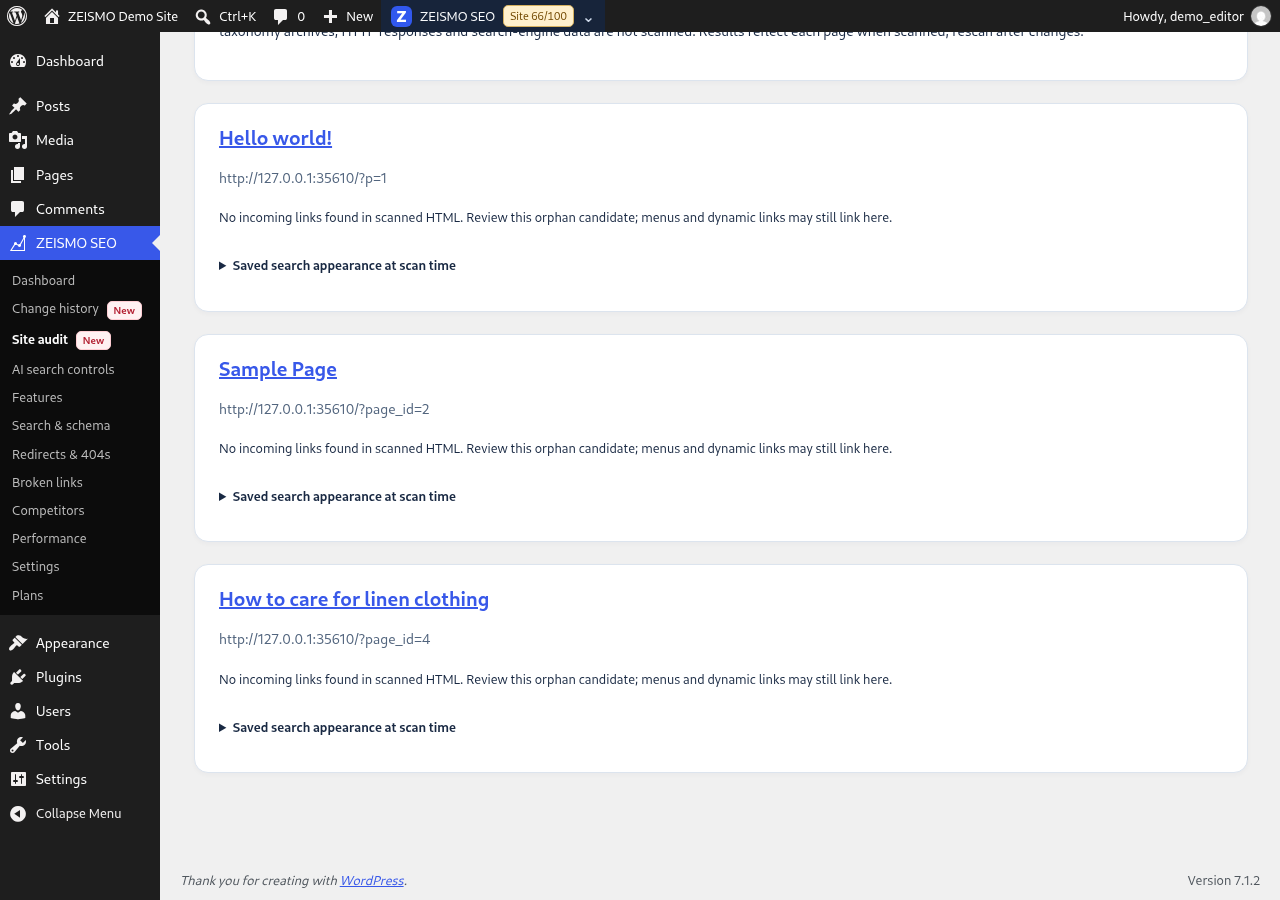
Return to Site audit, start another scan and let it finish. The sample page's fallback-description finding should disappear once a custom description has been saved. Other findings, such as an orphan candidate, may remain. Fixing a description does not resolve unrelated findings.
A better saved description is the result of this exercise. It is not a promise of higher rankings, more traffic or immediate indexing.
If something does not work
- Scan still running: use Continue next batch and note any displayed error. - Fields appear unchanged: reopen the same page, confirm the save completed and check for another plugin controlling SEO output. - Search indexing is discouraged: keep that setting on private sites. For a public site, review Settings → Reading intentionally before changing it. - Need help: send the plugin version, WordPress version, step and a redacted screenshot through https://zeismo.com/support/ . Do not send passwords or private customer information.
Help make the first task easier.
Try this workflow on a staging site and tell us what was clear, where you got stuck and what you expected. Participation is voluntary. No purchase, public review or account is required.
Send your plugin version, WordPress version and the step you tried. Please do not send passwords, API keys or private customer content.