Audit saved SEO data
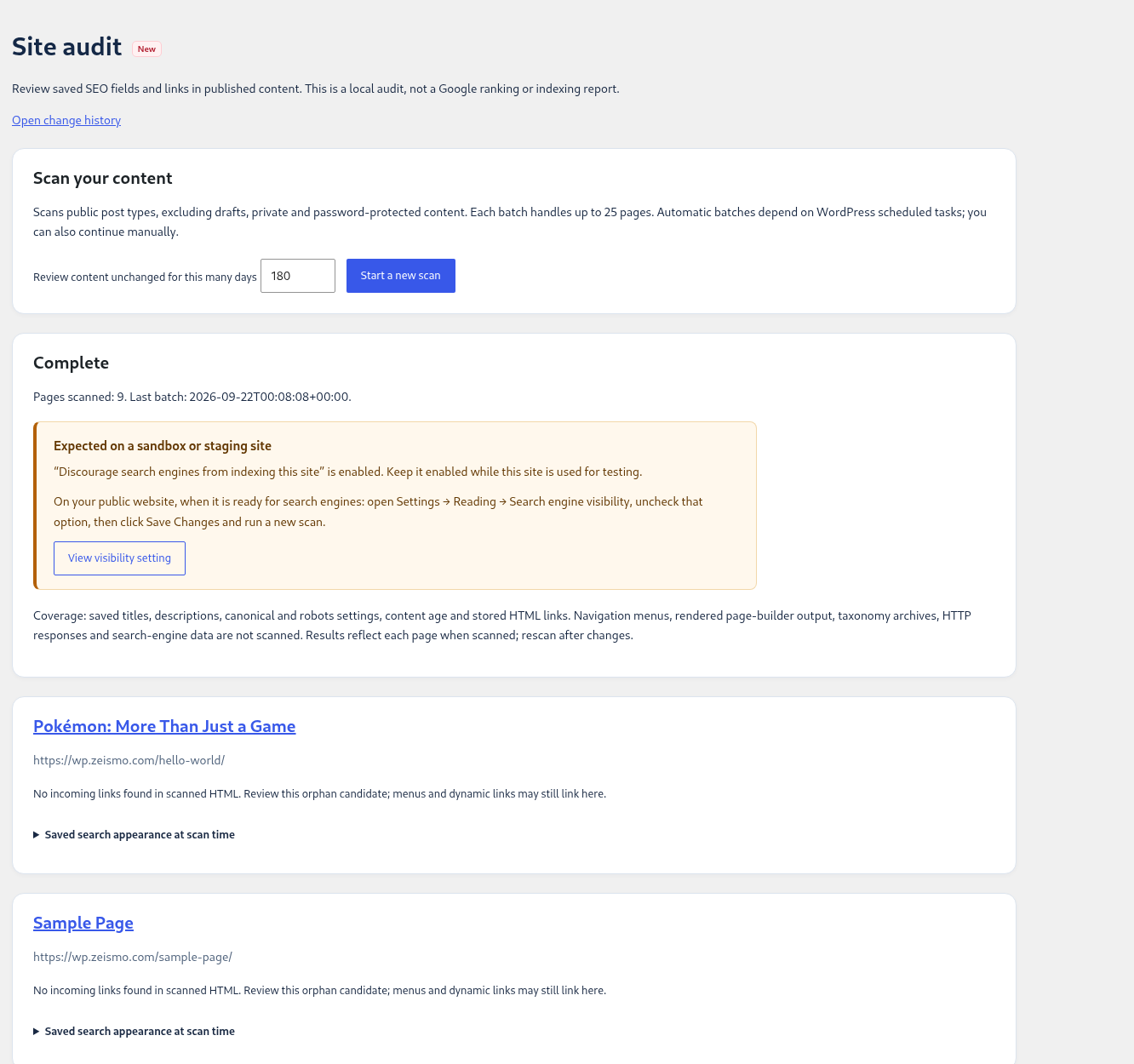
- Start a new scan.
Open Site audit, choose the content age threshold and select Start a new scan. Each batch reviews up to 25 published, unprotected pages.
- Let batches finish or continue manually.
The running indicator shows active work. WordPress scheduled tasks can continue the scan, and Continue next batch is available when you want to advance it yourself.
- Review the scope.
The audit reads saved SEO fields, content age and links in stored HTML. It does not render page-builder output, measure rankings or confirm search-engine indexing.
- Fix and rescan.
Open the relevant page or setting, save the change and run a new scan when you need refreshed results.
Review metadata history and undo safely
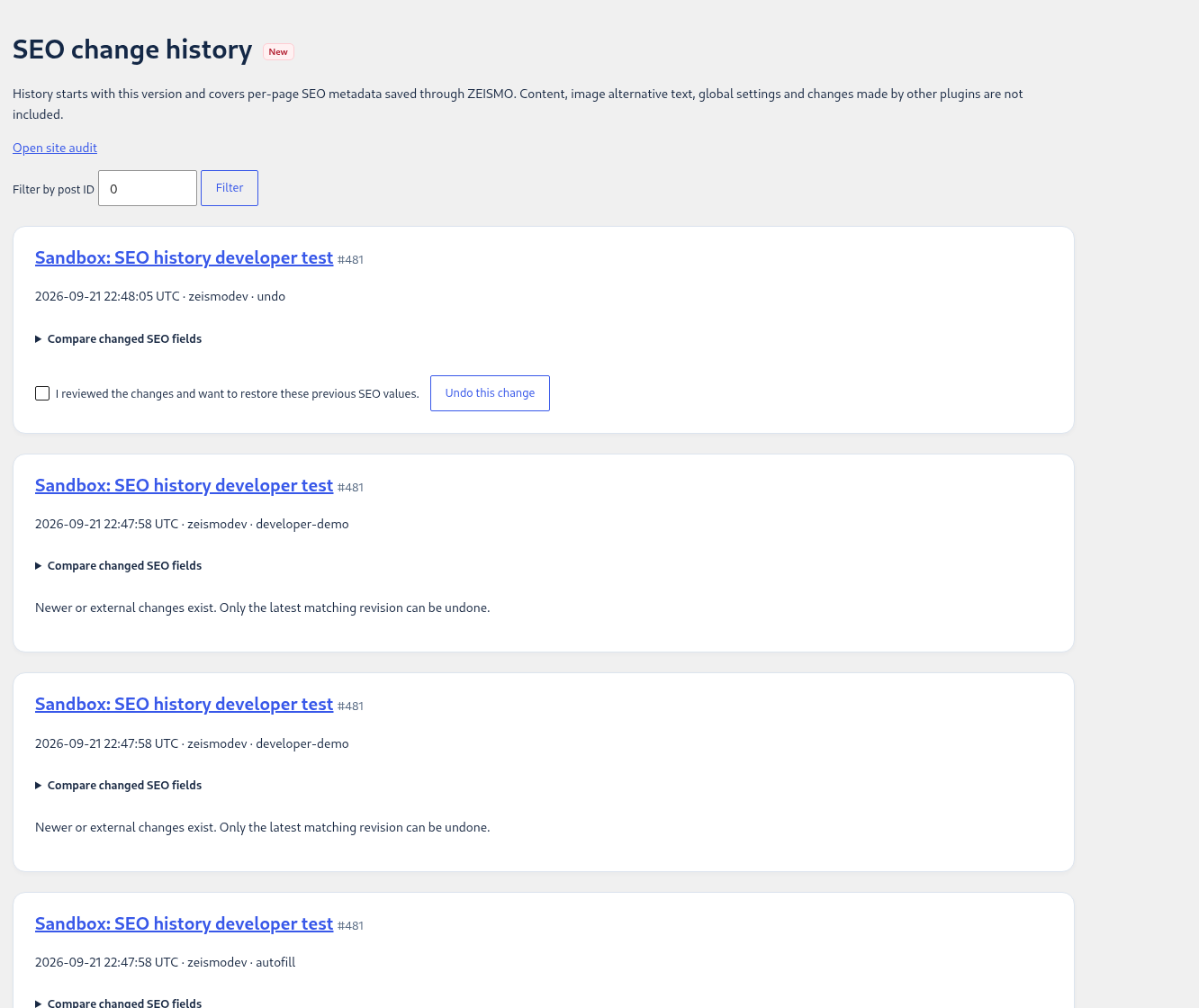
- Open Change history.
Use the ZEISMO SEO menu or the Site Audit link. History starts with version 1.0.3 and records per-page SEO metadata saved through ZEISMO.
- Compare the saved values.
Review the editor, source, time, and before and after values before restoring anything.
- Undo only the latest matching revision.
The conflict check stops an undo when newer metadata is present. Reload and review rather than overwriting a later edit.
Read dashboard notifications
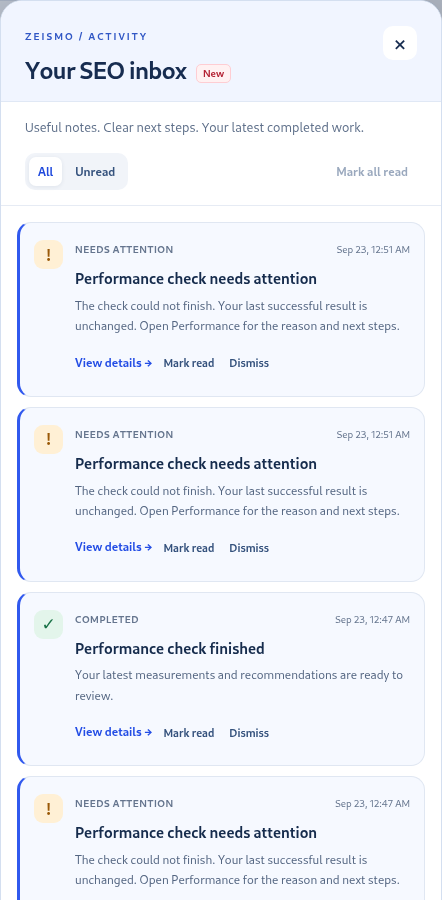
Open Notifications from the ZEISMO dashboard. New items describe supported background completions and site notes. Open the relevant action, then dismiss an item when you no longer need it.
Fix an old URL with a redirect
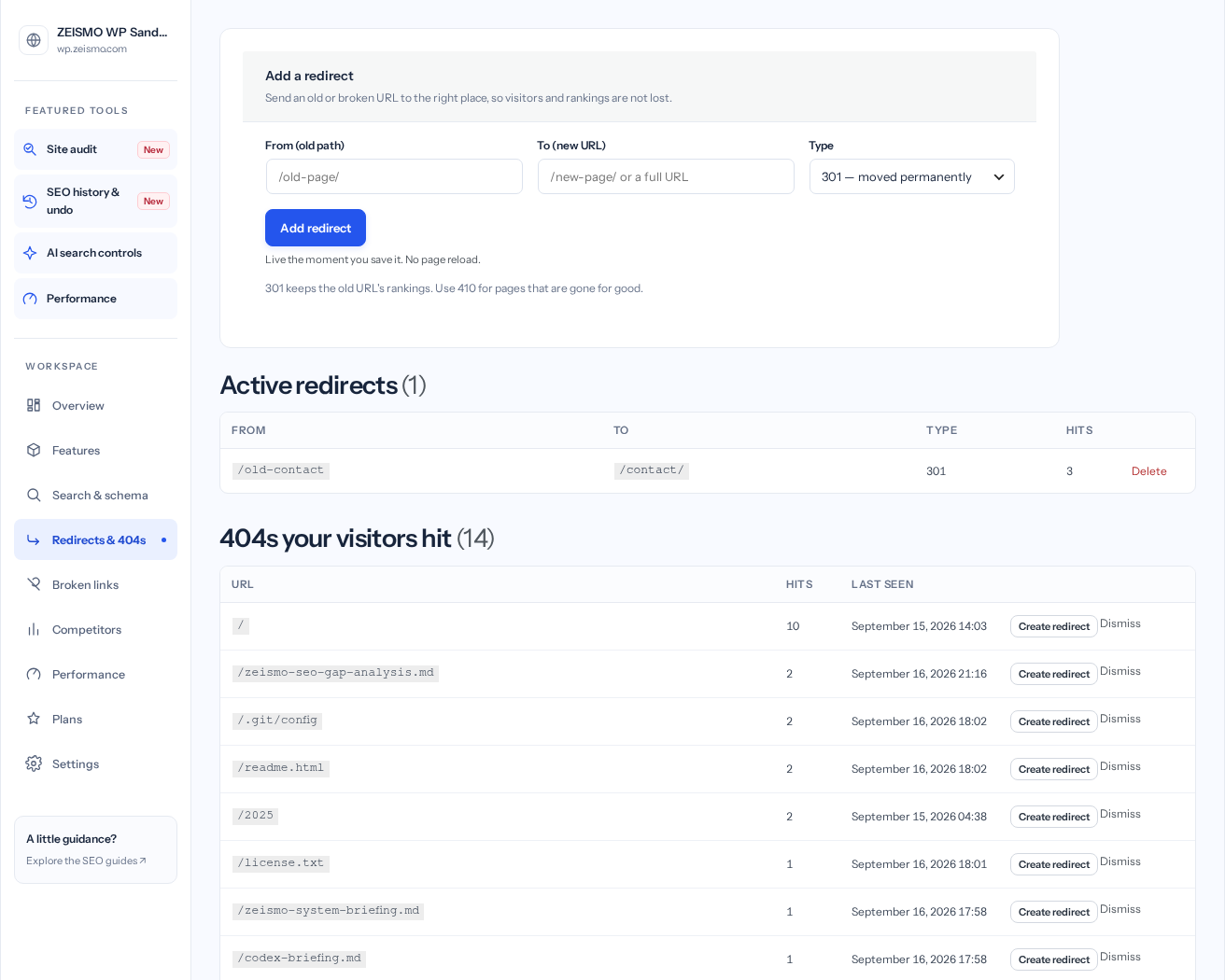
- Find the URL that needs fixing.
Open Redirects & 404s. You can enter an old path directly, or choose Create redirect from a recorded 404.
- Choose the destination and response.
For a permanent move, choose 301 and enter the replacement URL. Use 302 for a temporary move. Choose 410 only when content is intentionally gone; it is not a redirect to another page.
- Add the rule.
Check that the old URL and destination are different, then select the add button. The rule takes effect when saved.
- Test as a visitor.
Open the old URL in a private browser window. Confirm that it reaches the intended page without looping.
Check your result: The old path sends visitors to the intended destination. A saved rule alone is not proof that the destination is correct.
Find and repair broken links
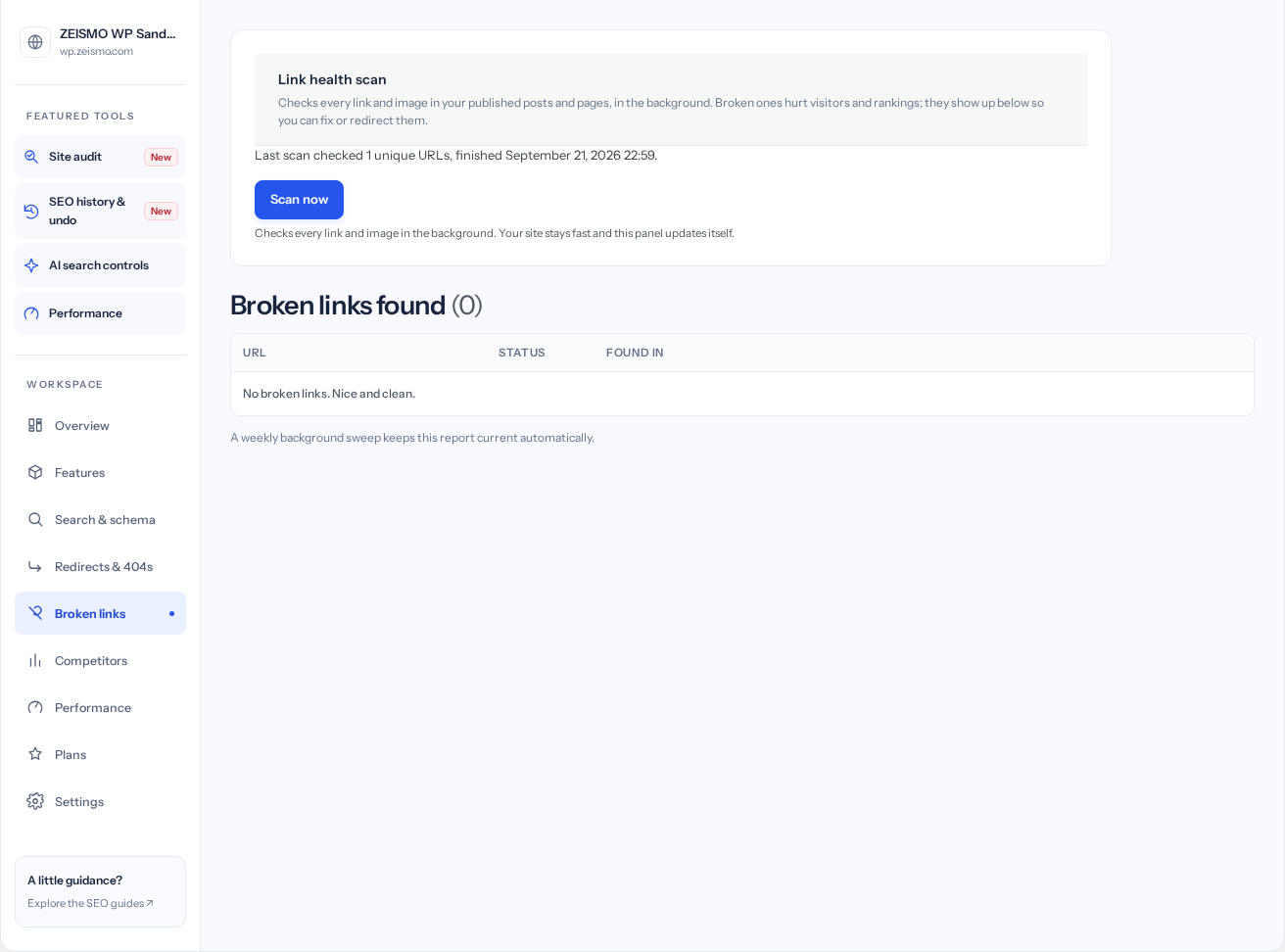
- Start a scan.
Open Broken links and select Scan now. Leave time for the background batches to finish.
- Review each result.
Read the destination, status and source page. Check the URL yourself; some remote sites can reject automated requests.
- Fix the source or add an appropriate redirect.
Edit the page containing the link. For an old internal URL, the Create redirect action can prefill the redirect manager. Dismiss only a result you have reviewed.
- Check again.
Run another scan after your changes and confirm the affected links behave correctly.
Move from another SEO plugin safely
- Back up the site.
Keep a complete database and file backup. A selected SEO checkpoint is not a full-site backup.
- Preview supported metadata.
Open Migrations, choose the installed source plugin and prepare a preview. Supported fields from Yoast SEO, Rank Math and All in One SEO are mapped for review. Unsupported template variables are skipped.
- Select changes deliberately.
Review source and destination values. Select only changes you want; existing handwritten values are protected unless you explicitly choose replacement. Changed sources are checked again when applying.
- Verify output.
Inspect representative public pages and sitemaps before deactivating the previous plugin. The migration does not delete its original records. Keep one plugin responsible for overlapping SEO output.
Review selected content edits
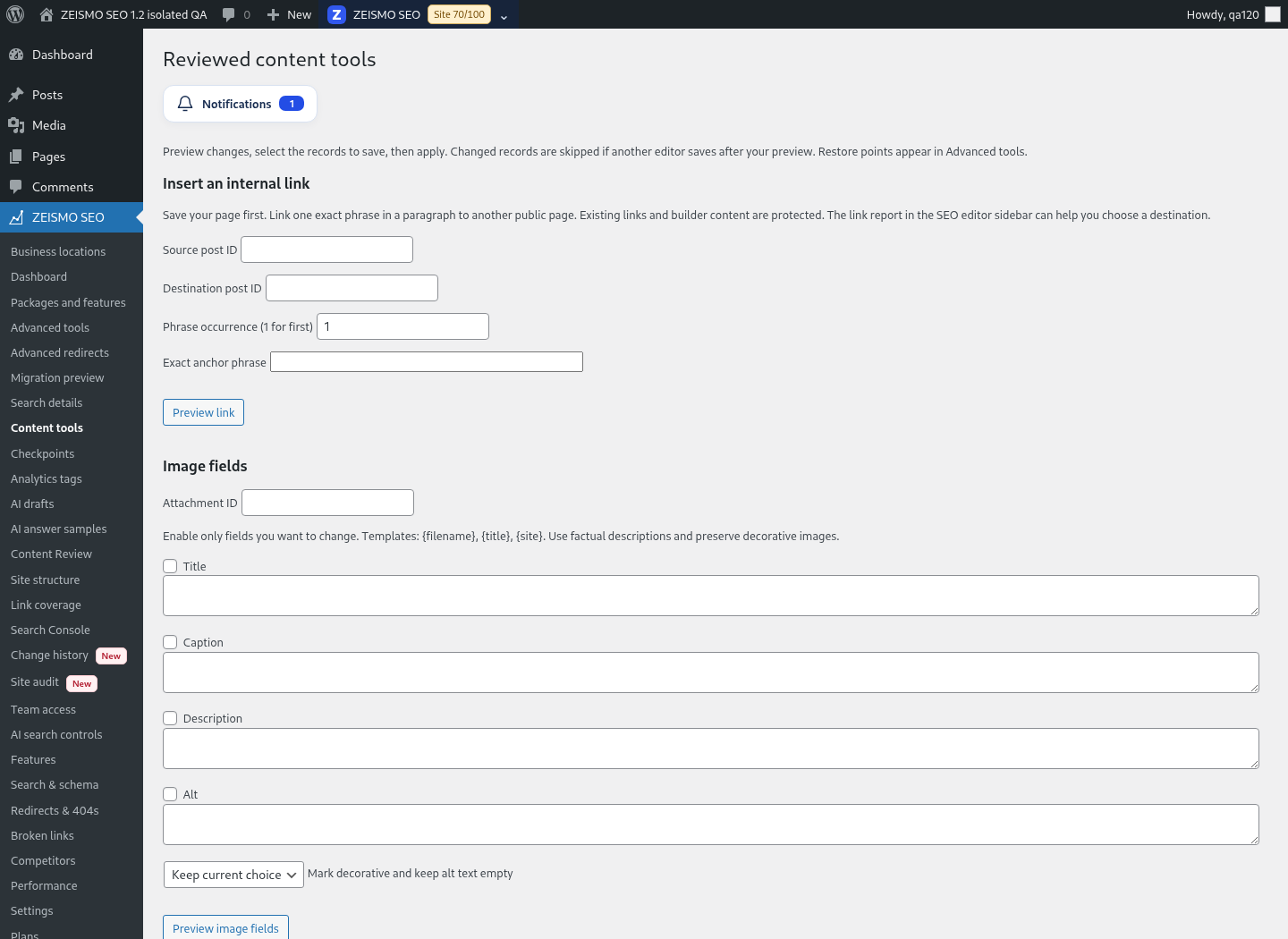
Open Content tools, select the supported operation and prepare a preview. Review rows before applying. A stale source is skipped instead of silently overwriting a newer edit. Link and image changes have bounded supported formats; inspect the resulting page.
Create a selected SEO checkpoint
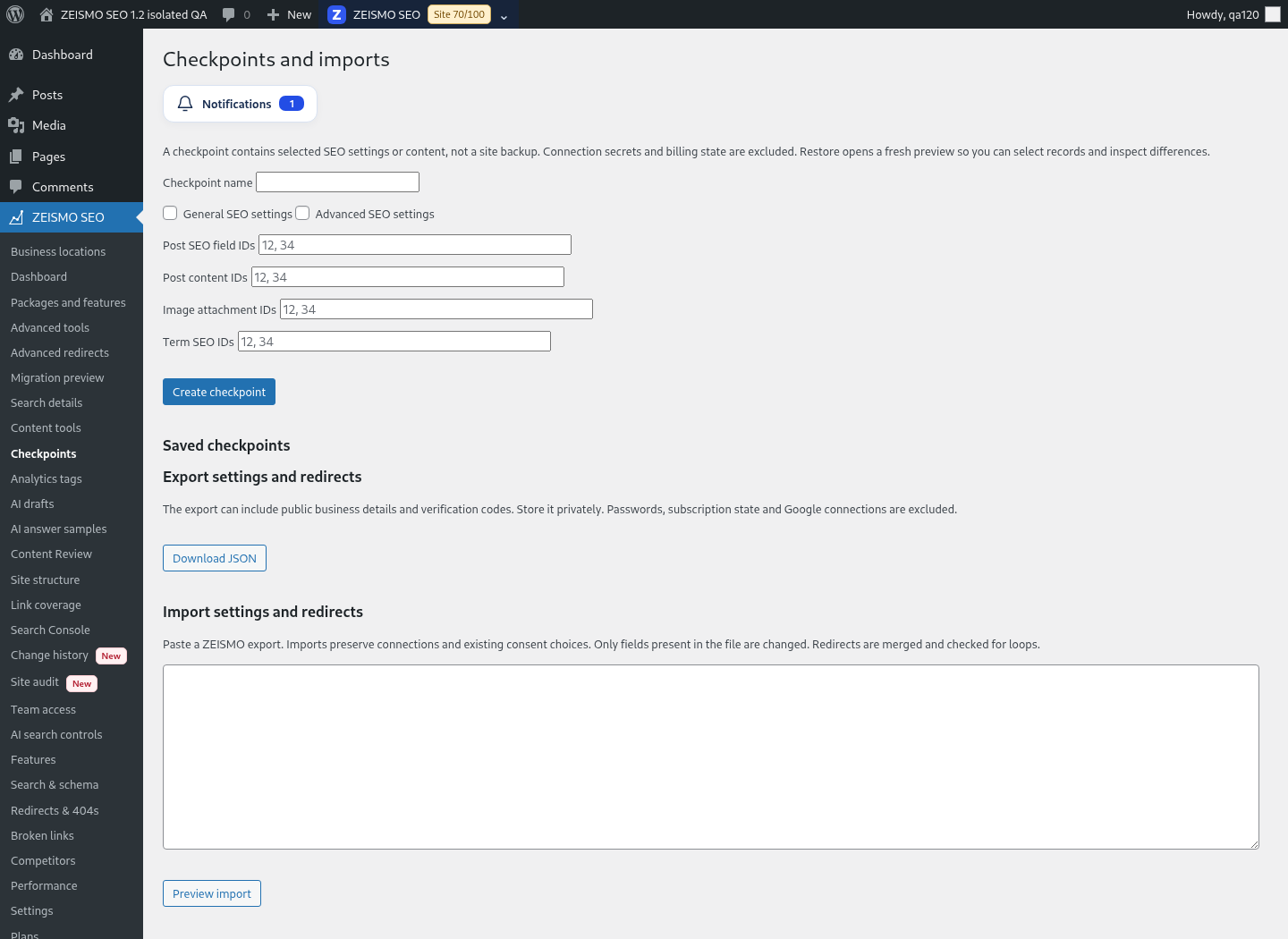
Select supported records and give the checkpoint a useful name. Review its contents before restoring. Restore creates a new reviewed change rather than replacing your database. Up to 20 named checkpoints and 50 selected records per checkpoint are supported.
Compare on-page content
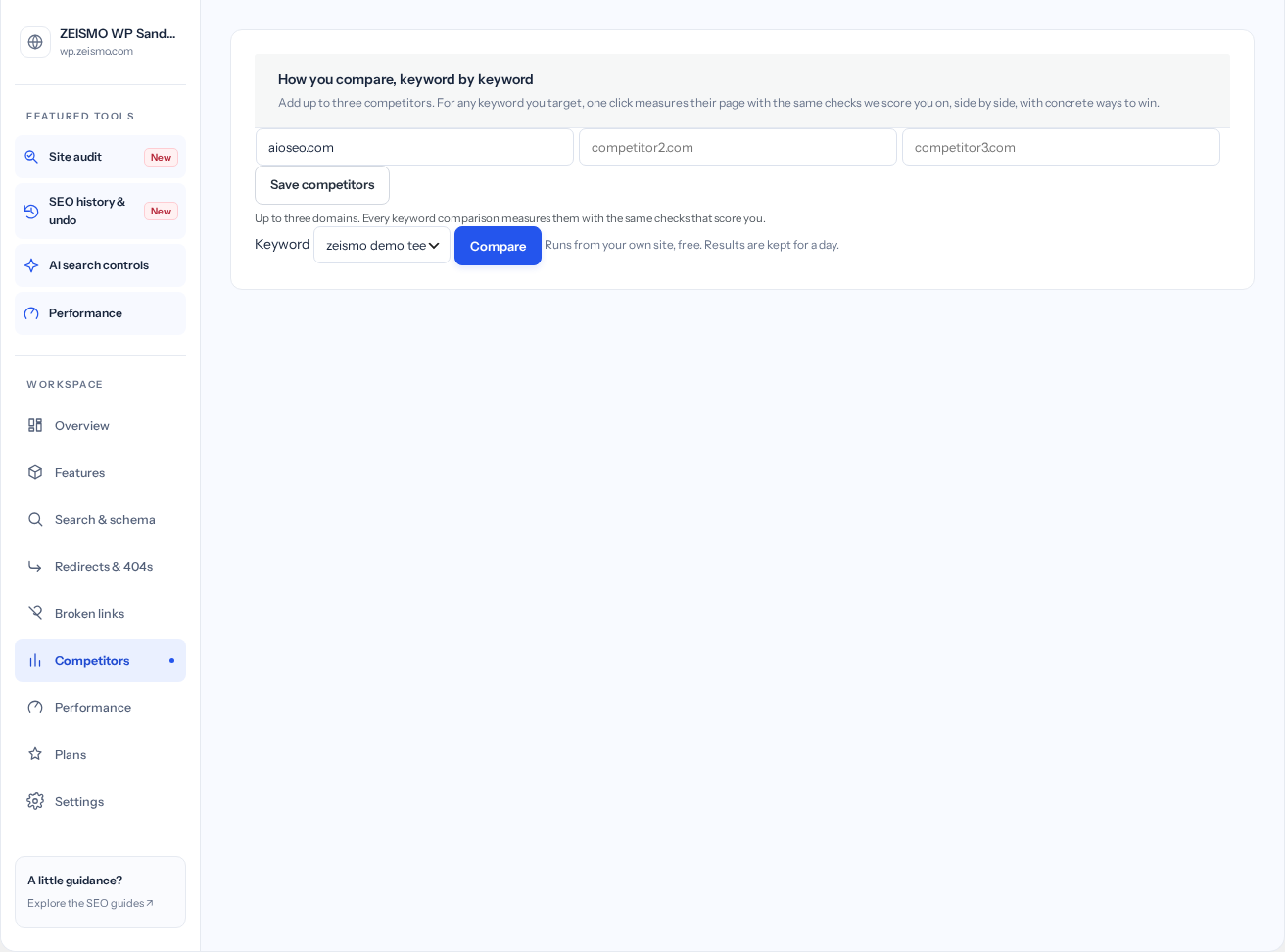
- Set a focus keyword on one of your pages.
Save the page so its keyword can appear in the comparison selector.
- Save competitor domains.
Open Competitors, enter the relevant domains and select Save competitors. Your plan and distribution determine the available limit.
- Choose a keyword and compare.
Select a keyword and press Compare. Review the returned page and its measured content signals before deciding what to improve.
Read a ZEISMO performance check
- Confirm the feature is available.
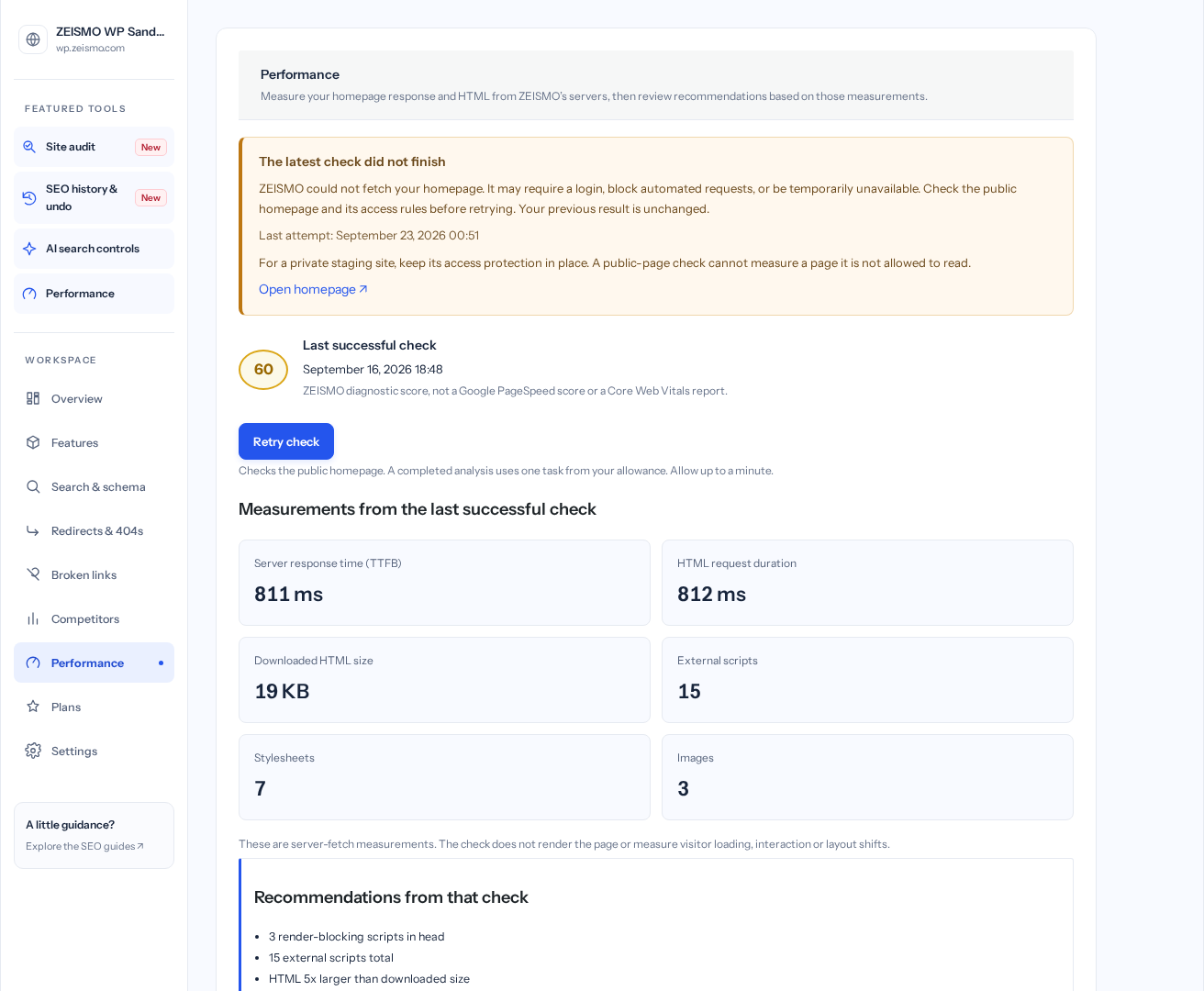
Open Performance. The screen explains if an account connection or eligible plan is required.
- Select Check now.
ZEISMO fetches your homepage from its own servers. The check uses the task allowance described by the screen.
- Read the timestamp and measurements.
Review server response time, HTML download time and size, plus the reported script, stylesheet and image counts.
- Review recommendations before making changes.
Apply appropriate changes through your normal site workflow, then run a new check to compare.