Connect an account
AI runs through ZEISMO's server-side service. You do not need to supply your own AI provider API key.
- Connect from WordPress.
Open ZEISMO SEO and choose Connect to ZEISMO. Sign in with your existing account or create one and verify your email.
- Confirm your website.
Check the website address, accept the connection terms and choose Connect and return to WordPress. The plugin retrieves your verified plan without copying a token.
- Use manual connection if needed.
Open Settings → Advanced: manual account connection, paste the complete private token and choose Connect account. This does not save or change unrelated SEO settings.
- Check the displayed plan.
Return to Plans and review the active plan and task allowance. Use Refresh plan when you need to retrieve the latest account state.
Review a title and description draft
- Prepare the page.
Write useful page content and choose a focus keyword in the ZEISMO SEO panel.
- Select Draft with AI.
Wait for the response. Review the proposed wording against your actual content, names and claims.
- Apply only what you want.
Use the review controls to accept or discard the draft. Once applied, the proposed text goes into the SEO fields for you to inspect.
- Save the page in WordPress.
Use Save or Update to persist your editor changes, then reload to verify them.
Check your result: Your chosen wording appears in the saved SEO fields. Discarded suggestions do not replace those fields.
Other AI workflows
Optimize with AI returns suggestions for improving the page. Content brief gives you a starting point for writing. Review the output before incorporating it into your content; these controls do not automatically publish a finished article.
On the Overview screen, Fix these with AI opens proposals for titles and descriptions. Review the proposed items, select the ones you approve, and use the apply action to save those approved changes.
Understand plans and usage
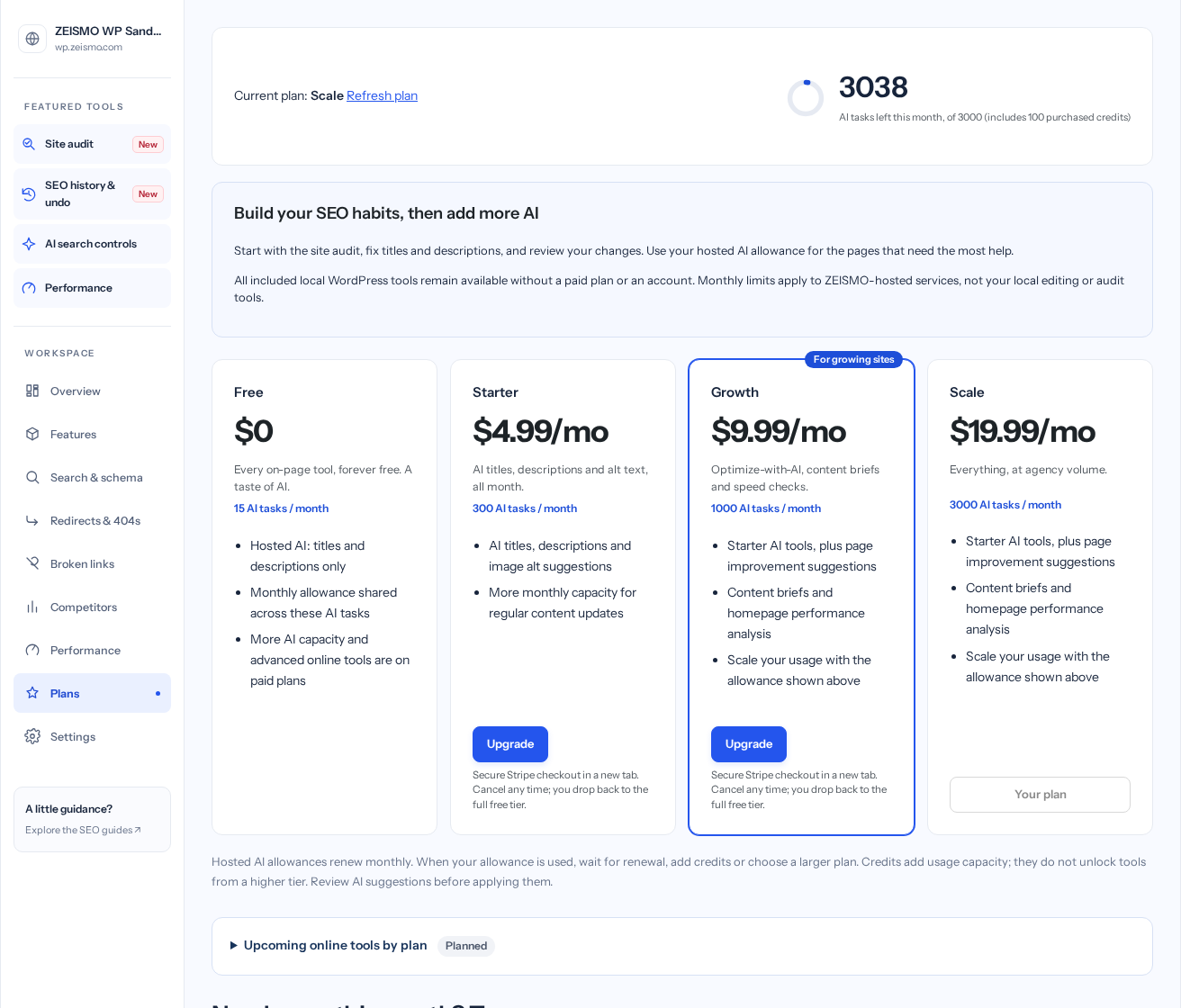
The Plans screen is the current reference for prices, included task allowances and feature availability. The screenshot shows the sandbox account at capture time, not a promise of your account balance.
- Check which capability you need.
Review its state in Features and the plan information before upgrading. A feature marked Planned is not unlocked by purchasing a plan.
- Review the checkout.
If you choose an upgrade or credit pack, review its price and terms in the checkout before confirming payment.
- Refresh after an account change.
Return to Plans and select Refresh plan. If the state has not updated, check again later or contact support with your receipt reference. Do not repeat a purchase merely because the display has not refreshed.
Choose the right hosted task
Starter includes eligible schema and image-aware alt drafts. Growth adds serial batch metadata/alt and supported rewriting, FAQ and summary tasks. Scale adds ZEISMO Content Review and attributed AI answer samples. All require a connected eligible account, request consent and available usage.
Content Review shows measured writing facts separately from provider suggestions. Answer samples are responses to your prompt, not live Google or ChatGPT ranking reports. Review drafts before applying. Batch queues send one request at a time; closing the screen stops subsequent work, but an in-flight request may finish. Network uncertainty requires checking usage before retrying.