
THE ACTUAL PRODUCT
One console, clear evidence
For ZEISMO Security 1.0.0 WordPress.org listing: ZEISMO Security – Firewall, Malware Scanner & Login Protection
ZEISMO Security provides local request monitoring, file scanning, login safeguards, IP controls and WordPress hardening. The WordPress.org edition runs these features on the WordPress site where it is installed. It does not require a ZEISMO account and does not send source files or traffic data to ZEISMO.
No security plugin can guarantee that a site will never be compromised. Keep tested backups, update WordPress and its extensions, remove unused software, and review unexpected findings before acting.
Quick start
- Install and activate the plugin, then open ZEISMO Security > Setup.
- Leave the firewall in Monitor mode. This records suspicious requests without blocking visitors.
- Open Scanner and select Run full scan. Review the coverage, skipped files and every finding.
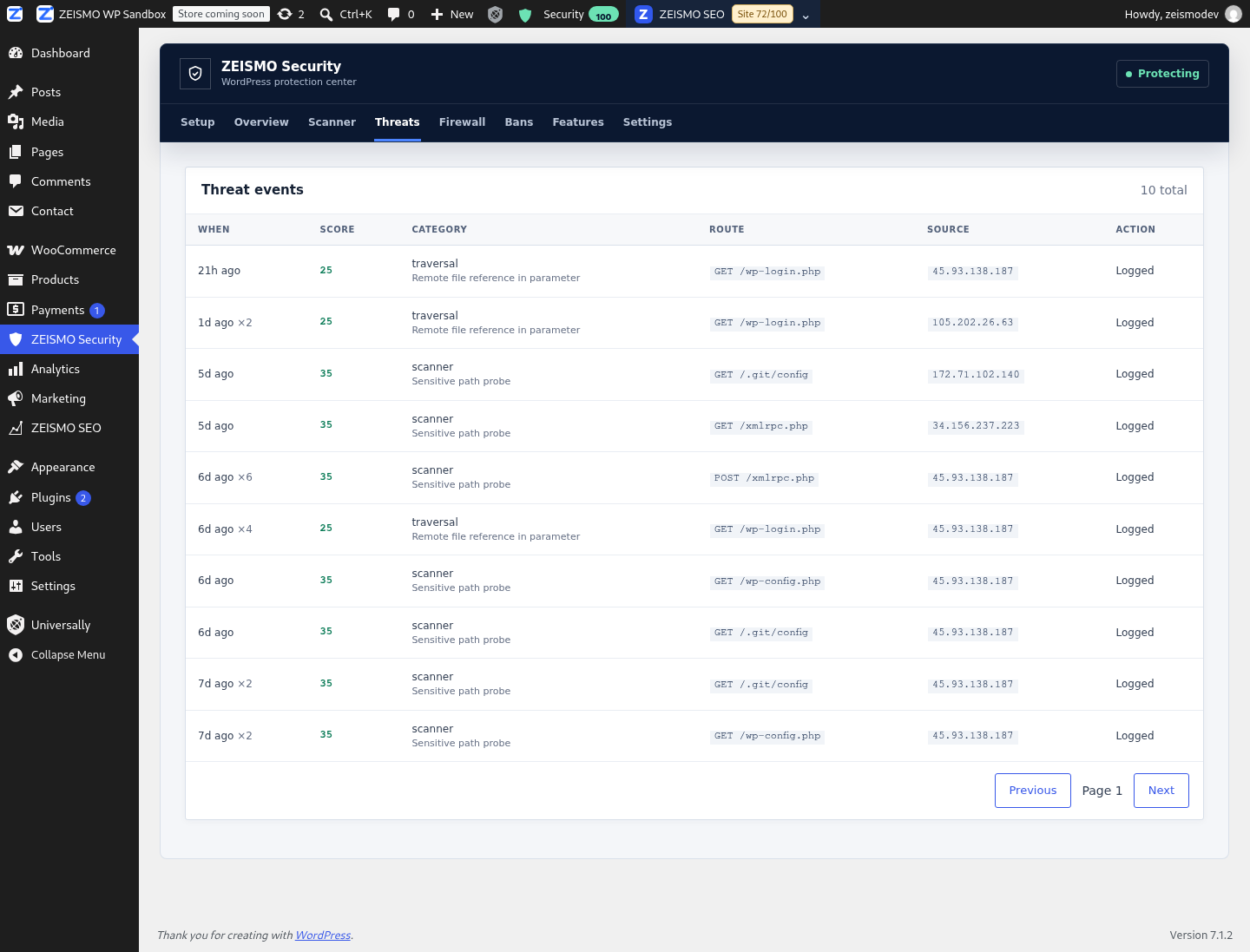
- Open Threats and review the evidence collected from your site.
- Open Firewall. When you understand the recorded traffic, enable Block mode and choose the categories to enforce. A threshold of 70 is the normal starting point.
- Open Settings and review login protection, hardening, privacy, retention and optional email alerts.
- If the site is behind a reverse proxy, configure trusted proxy ranges before changing the visitor connection mode.
Main screens
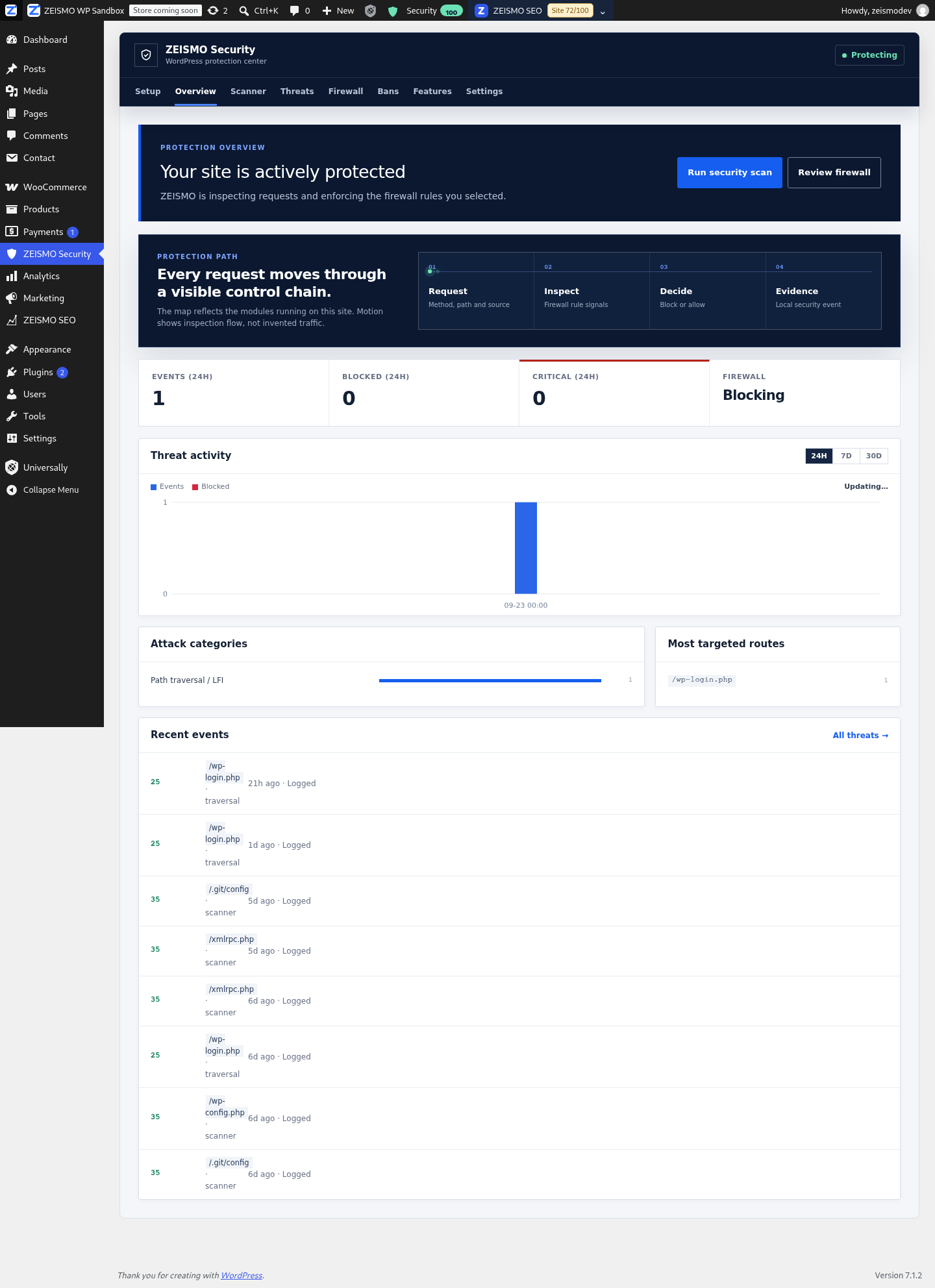
- Overview shows the current protection posture, configuration score, recent activity and shortcuts. Counts come from this site's local records.
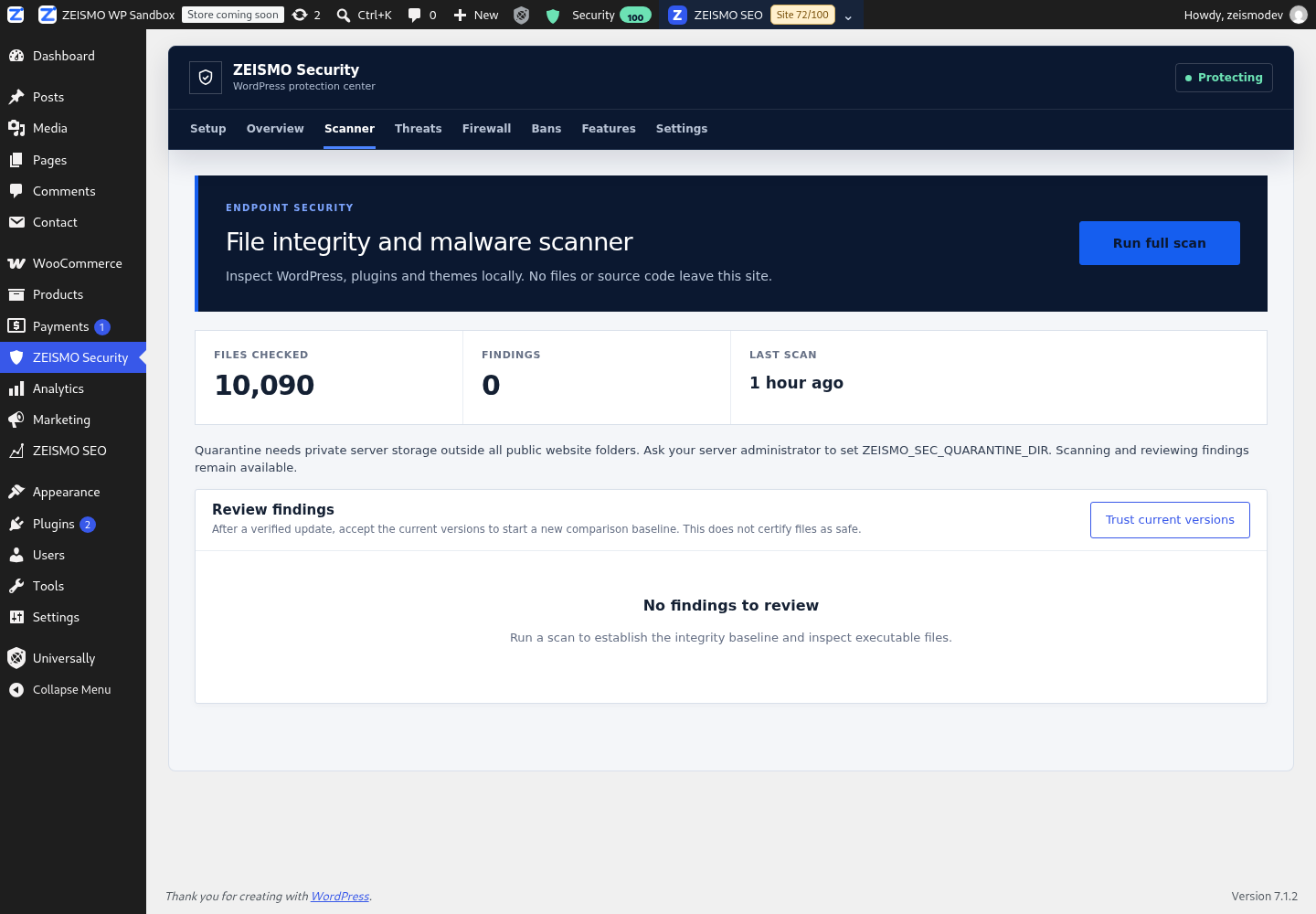
- Scanner runs integrity and malware-pattern checks, reports scan coverage, and lets an administrator establish a comparison baseline.
- Threats lists local security events with category, risk, request path and available network evidence.
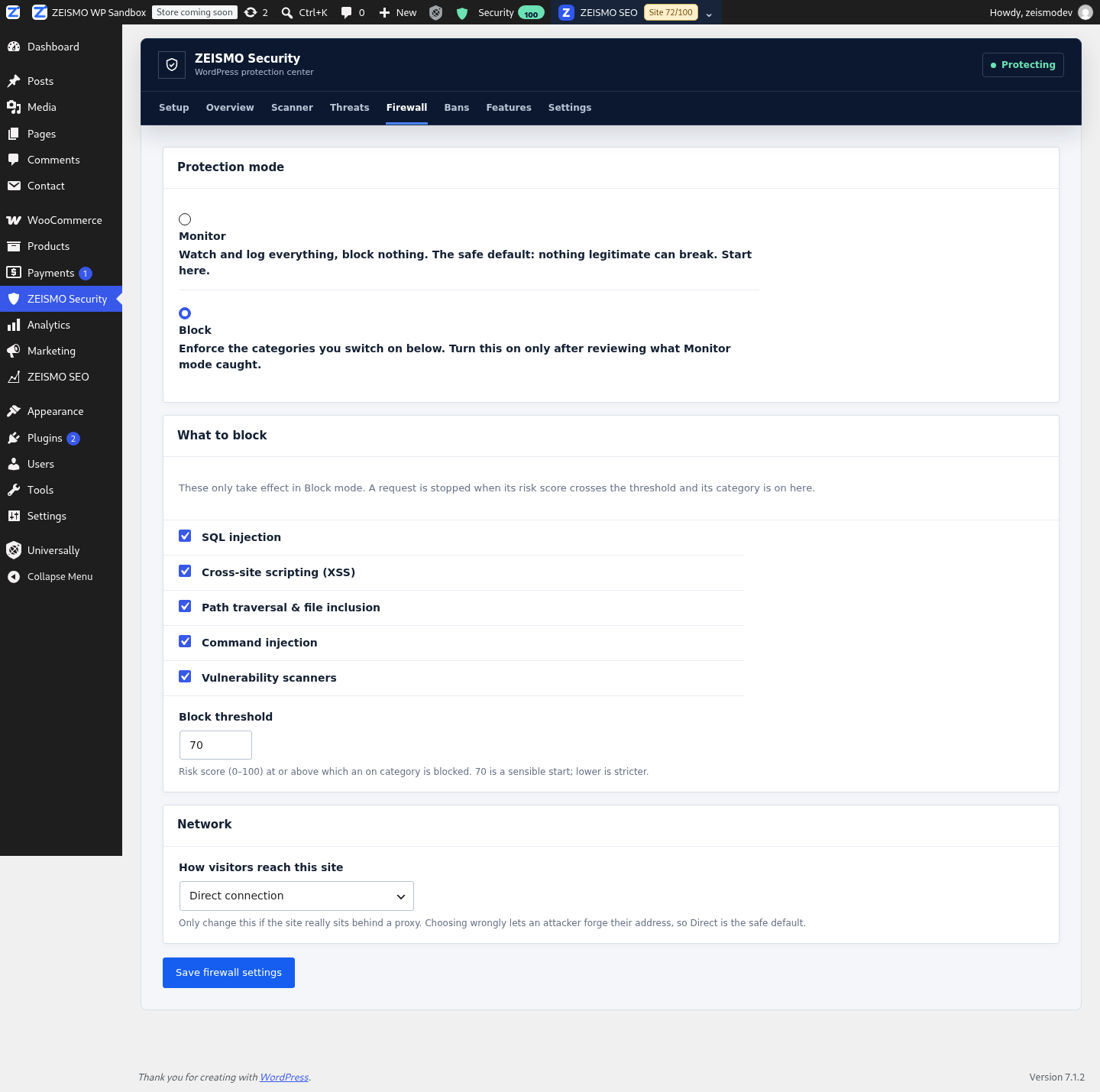
- Firewall selects Monitor or Block mode, attack categories, risk threshold and network mode.
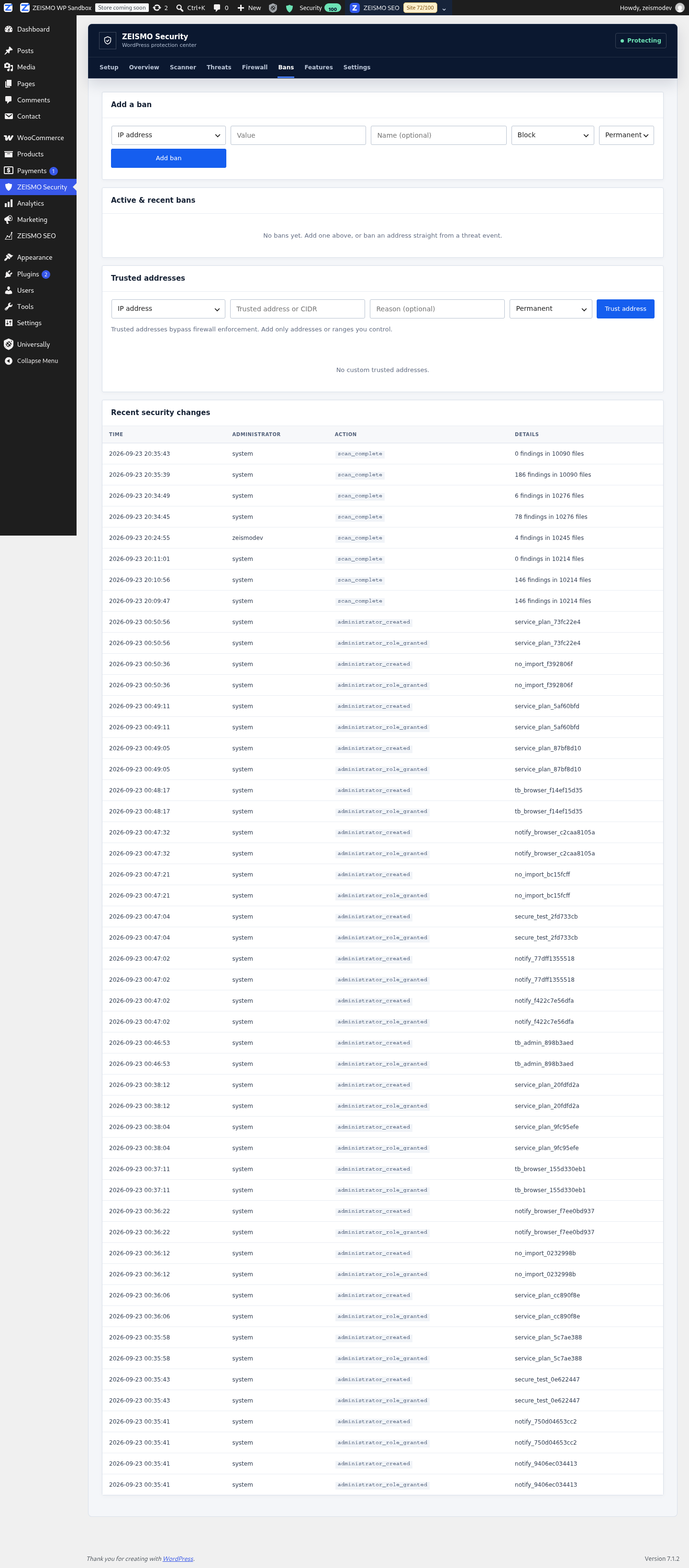
- Bans manages temporary or permanent block rules, log-only rules and allowlist entries.
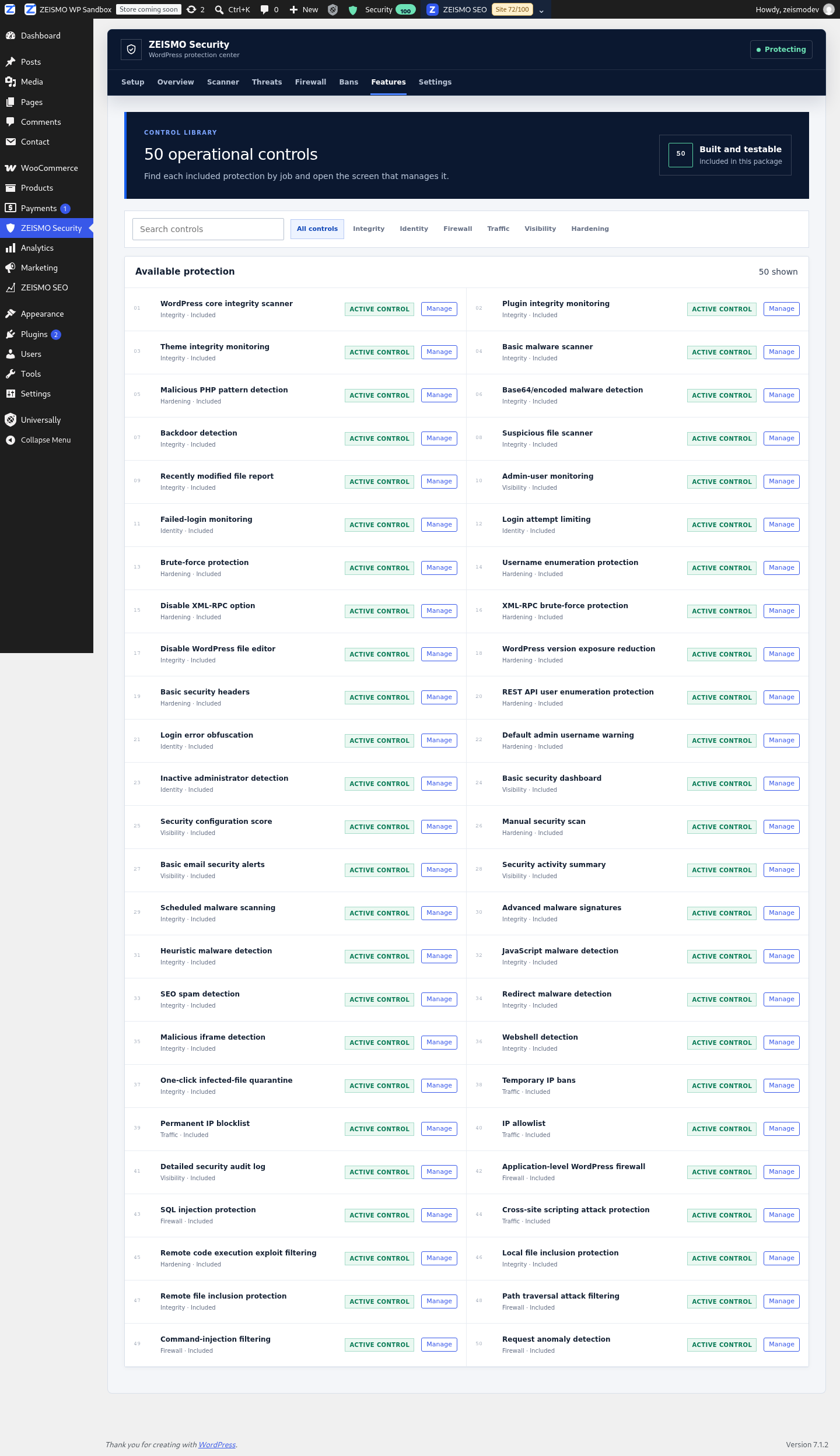
- Features is the source of truth for controls that are available in this version. Items marked Planned are unavailable.
- Settings controls WordPress hardening, login safeguards, privacy, retention and alerts.
File scanner workflow
Select Run full scan on the Scanner screen. The scanner compares WordPress core files, installed plugin files and installed theme files where an integrity reference is available. It also inspects executable and web files for suspicious patterns, recent modification signals, obfuscated code, webshell behavior, injected JavaScript, redirect malware, SEO spam and malicious iframes.
A finding is evidence to review, not proof that a file is malicious. A legitimate plugin can contain code that resembles an attack signature. The screen reports when a scan is truncated or cannot read a path. Treat an incomplete scan as incomplete coverage.
After a verified WordPress, plugin or theme update, Trust current versions creates a new comparison baseline. This does not certify the files as safe.
Quarantine is disabled until a server administrator defines ZEISMO_SEC_QUARANTINE_DIR as an existing writable directory outside every public document root. Only reviewed malware findings can be moved. Keep a backup and verify the file before quarantine because removing an application file can break the site.
Firewall workflow
Monitor is the default. The plugin scores suspicious request signals and records evidence, but it does not stop the request. Block enforces only the categories selected under What to block, and only when the risk score reaches the configured threshold.
Available enforcement categories cover SQL injection, cross-site scripting, path traversal and file inclusion, command injection, and vulnerability scanners. Lowering the threshold makes enforcement stricter and can increase false positives. Review Threats after every rule change. Logged-in editors are excluded from firewall enforcement, and the filter fails open if it cannot evaluate a request.
Use Direct connection unless the site really sits behind a trusted reverse proxy. Before selecting Cloudflare or trusted proxy mode, a server administrator must define ZEISMO_SEC_TRUSTED_PROXIES in wp-config.php with the actual proxy IP addresses or CIDR ranges. The plugin does not trust a forwarded address merely because a mode was selected.
Login protection and WordPress hardening
The default login safeguard limits repeated failures from an address. Failed attempts are recorded locally, and a successful login clears that username's temporary counter. The plugin also monitors administrator creation, administrator-role grants and administrator activity signals.
Settings provide optional XML-RPC disabling, public author-enumeration protection, public REST user-enumeration protection, neutral login errors, reduced WordPress version exposure, safe browser security headers and disabling of the built-in plugin/theme file editor. XML-RPC can be required by Jetpack, mobile apps or remote publishing, so test that change against the site's integrations.
Bans and allowlist
The Bans screen can create block or log-only rules for an IP address, CIDR range, two-letter country, user-agent fragment or minimum risk score. Time-limited rules can last one hour, one day or seven days; permanent rules remain until removed. Review the displayed rule before saving it.
Allowlist only addresses or ranges you control. An allowlist can bypass detection for matching traffic, so a broad entry weakens protection. The plugin records rule changes in its local audit history.
Privacy, retention and alerts
Security events can contain request paths, browser user-agent strings, usernames used in login attempts, pseudonymous IP hashes and optional raw IP addresses. Raw IP storage is enabled by default for investigation and blocking. Disable it or enable address anonymisation in Settings if that better matches the site's privacy policy. Raw event IPs are purged after 90 days even when the chosen event-retention period is longer. The selectable event retention is 7 to 365 days.
Critical-event email alerts are optional and disabled by default. When enabled, they use the site's configured WordPress mail system and the address entered in Settings. The same event fingerprint is rate-limited to avoid repeated messages.
Deactivation and deletion preserve settings and incident evidence. An administrator who decides to erase the data can remove the zeismo_security_settings, zeismo_sec_db_version, zeismo_sec_setup_complete and zeismo_sec_deactivation_feedback options and the database tables beginning with the site's table prefix followed by zeismo_sec_.
Every available feature
The following 50 controls are implemented in version 1.0.0. Features shown as Planned inside the plugin are not included in this release.
Integrity and malware scanning
- WordPress core integrity scanner compares core files with the expected WordPress version. Run a full scan and review changed or unexpected core files.
- Plugin integrity monitoring checks installed plugin files against available integrity references and the accepted baseline. Re-scan after updates.
- Theme integrity monitoring checks installed theme files for unexpected changes. Review custom theme edits before accepting a new baseline.
- Basic malware scanner inspects local files for security patterns. Use Scanner and review each match in context.
- Malicious PHP pattern detection identifies PHP constructs commonly used in attacks. Inspect the named file and rule before acting.
- Base64/encoded malware detection flags suspicious encoded payload patterns. Confirm whether the encoding is legitimate application code.
- Backdoor detection looks for code patterns used to regain hidden access. Escalate an unexplained match for manual review.
- Suspicious file scanner reports executable or web files that match suspicious signals. Use the path and rule to investigate.
- Recently modified file report surfaces recent changes that may help explain an incident. Compare them with known updates or deployments.
- Scheduled malware scanning runs the local scanner through WordPress scheduled tasks. Confirm WP-Cron works on the site and review the latest scan time.
- Advanced malware signatures applies the bundled higher-confidence local signatures. Signatures are evidence and still require review.
- Heuristic malware detection combines suspicious code characteristics that may not match one exact signature. Review false-positive risk carefully.
- JavaScript malware detection inspects scripts for injected or obfuscated malicious behavior. Check legitimate minified bundles before action.
- SEO spam detection looks for injected spam links and search-manipulation payloads. Compare findings with intended site content.
- Redirect malware detection flags suspicious redirect code and destinations. Confirm whether the redirect is part of a known plugin or campaign.
- Malicious iframe detection looks for hidden or suspicious embedded frames. Review the destination and placement.
- Webshell detection flags patterns associated with web-based command shells. Treat an unexplained result as high priority.
- One-click infected-file quarantine moves a reviewed malware finding into configured private storage. Configure
ZEISMO_SEC_QUARANTINE_DIR, keep a backup, and quarantine only after verification.
Login and administrator protection
- Admin-user monitoring records administrator creation and administrator-role grants in the local audit trail. Review unexpected entries.
- Failed-login monitoring records failed attempts with the submitted username and available network evidence. Review repeated or distributed attempts.
- Login attempt limiting delays repeated failures from an address. Leave it enabled unless it conflicts with a tested authentication layer.
- Brute-force protection uses the attempt counter to reduce repeated password guessing. Review failed-login history for continuing attacks.
- Username enumeration protection blocks numeric author discovery when enabled. Test public author archives after changing it.
- XML-RPC brute-force protection is provided by the optional XML-RPC disable control. Enable it only when the site does not require XML-RPC.
- Default admin username warning warns when a predictable administrator login needs review. Create a separate administrator and retire the predictable account through normal WordPress user management.
- Inactive administrator detection lists administrators without recent recorded activity. Verify ownership before removing access.
WordPress hardening
- Disable XML-RPC option disables XML-RPC methods and related headers. Test remote publishing, mobile applications and Jetpack first.
- Disable WordPress file editor prevents editing plugin and theme code in wp-admin. Enable it to reduce damage from a compromised administrator session.
- WordPress version exposure reduction removes common public version signals. This reduces passive disclosure but does not replace updates.
- Basic security headers sends safe browser security headers where WordPress can do so. Verify the public response after enabling it.
- REST API user enumeration protection limits public REST user discovery. Test applications that intentionally read public user data.
- Login error obfuscation replaces detailed authentication errors with a neutral message. This reduces username confirmation.
Firewall and request analysis
- Application-level WordPress firewall evaluates requests inside WordPress. Start in Monitor, review evidence, then enable chosen categories.
- SQL injection protection detects SQL control sequences and suspicious parameter patterns. Enable the SQL injection category in Block mode after monitoring.
- Cross-site scripting attack protection detects script and browser-execution payloads. Enable the XSS category after checking legitimate form traffic.
- Remote code execution exploit filtering detects command-execution patterns. It is enforced through the command-injection category.
- Local file inclusion protection detects attempts to load local server files. It is enforced with path traversal and file inclusion.
- Remote file inclusion protection detects attempts to load external code through file parameters. It is enforced with path traversal and file inclusion.
- Path traversal attack filtering detects directory traversal sequences. Enable its category after reviewing application paths.
- Command-injection filtering detects shell metacharacters and command payload patterns. Enable its category after monitoring API and form traffic.
- Request anomaly detection combines method, path, query, body and scanner signals into a weighted risk score. Use Threats to review why a request was scored.
Traffic controls and evidence
- Temporary IP bans blocks a matching rule for one hour, one day or seven days. Add the rule in Bans and confirm it expires as expected.
- Permanent IP blocklist keeps a matching IP or CIDR blocked until an administrator removes the rule. Avoid broad ranges without evidence.
- IP allowlist bypasses security handling for trusted addresses or ranges. Keep entries narrow and remove them when no longer needed.
- Detailed security audit log records configuration and rule changes locally. Review it when investigating who changed protection settings.
Dashboard, scoring and alerts
- Basic security dashboard brings posture, activity and actions into the Overview screen. Use it as a starting point, then open the source screen for detail.
- Security configuration score measures enabled local controls. It is a configuration indicator, not a guarantee of security.
- Manual security scan starts the local file scan on demand. Run it after unexpected behavior and after restoring or updating files.
- Basic email security alerts sends an optional WordPress email for critical detections. Enable it in Settings and verify mail delivery separately.
- Security activity summary shows measured recent event and block totals from local records. Empty data means no recorded event, not proof that no attack occurred.
Troubleshooting and recovery
A legitimate request is blocked
Return the firewall to Monitor mode, reproduce the request, and inspect its event category and score. Raise the threshold or disable only the affected category. Add an allowlist rule only when the source address is stable and trusted.
The scanner reports no findings
Confirm the scan completed, the file count is plausible, and no truncation or access warning appears. No finding means no configured pattern matched the files that were read; it is not a clean-site certificate.
The scan is incomplete
Review PHP execution limits, filesystem permissions and the skipped-file report. Correct the access problem and run a new scan before relying on its coverage.
The wrong visitor address appears
Use Direct connection unless a real reverse proxy is present. Configure ZEISMO_SEC_TRUSTED_PROXIES with the proxy addresses or CIDR ranges before selecting a forwarded-address mode. Never trust forwarded headers from arbitrary clients.
An administrator is locked out
The plugin excludes logged-in editors from normal firewall enforcement, but another rule or plugin may still affect access. Use the hosting file manager or secure shell to temporarily rename the zeismo-security plugin directory, sign in, inspect the rules, then restore the directory name. Do not delete incident records during recovery.
Email alerts do not arrive
Confirm alerts are enabled, the destination is correct, and WordPress can send mail. A repeated event with the same fingerprint may be suppressed temporarily to limit duplicate messages.
Support information
When requesting support, provide the plugin version, WordPress version, PHP version, the affected screen, steps to reproduce the issue, and the exact visible error. Remove passwords, authentication tokens, raw IP addresses and private customer information from screenshots and logs.